Marker tool
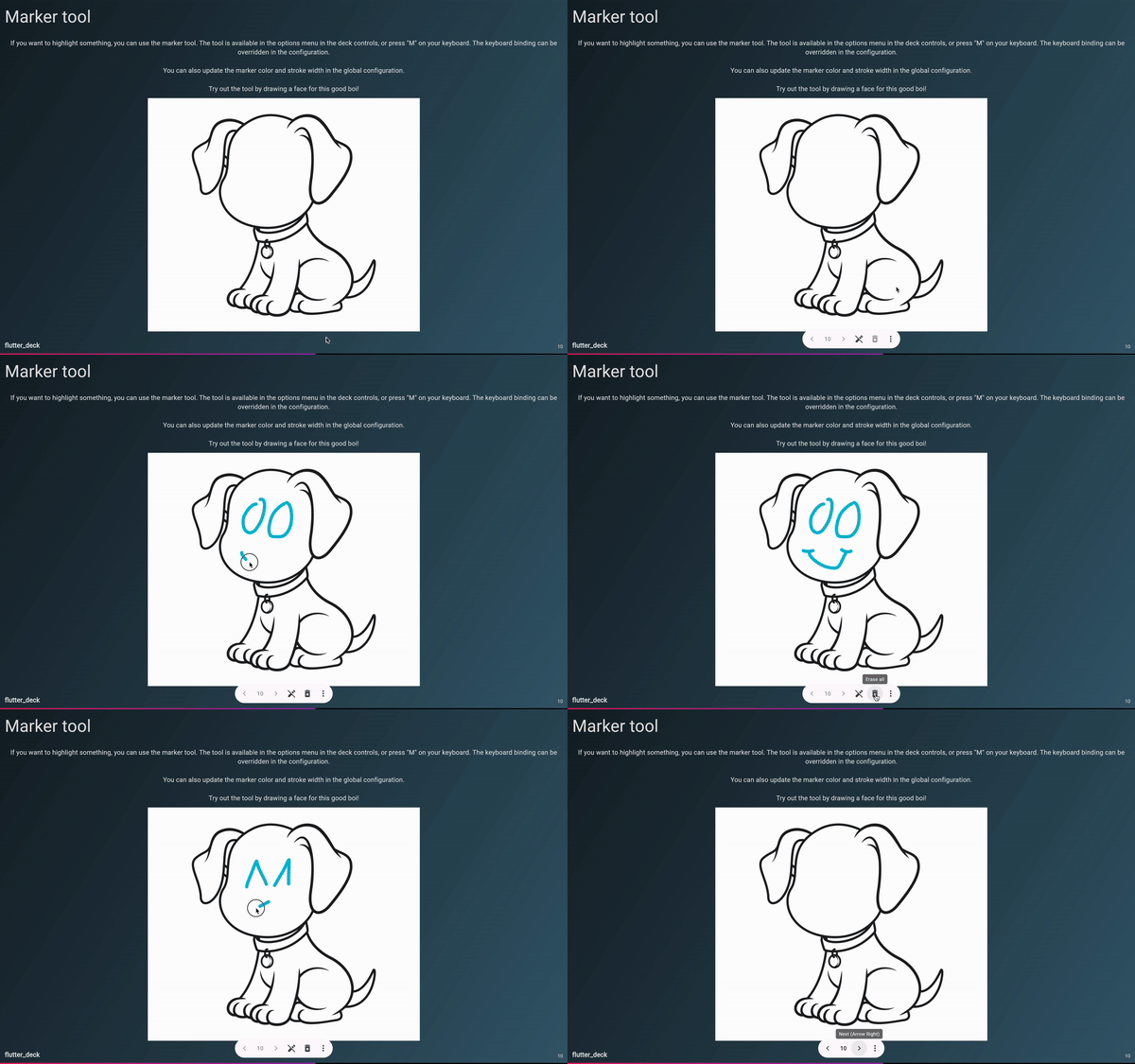
The marker tool allows you to draw on top of the slide. It can be used to highlight specific parts of the slide, or to draw anything you want. The tool is available in the presenter toolbar, or just press "M" on your keyboard (it's also possible to specify a custom key binding for the toggleMarker shortcut in FlutterDeckShortcutsConfiguration).
Drawings are stored per slide. Toggling the marker off or navigating to another slide does not erase them - when you come back to a slide, its drawings are restored. Use the "Clear marker" action in the toolbar to clear the drawings for the current slide.
If you prefer the drawings to be cleared whenever you change slides, set persist to false in the FlutterDeckMarkerConfiguration (see the global configuration guide).